Introduction
This article covers the most frequent issues that occur with SAML Single Sign-On (SSO) in Docebo. Most of these issues are caused by misconfigurations rather than platform defects. Use this guide to identify and resolve them before contacting support.
Submitting a support ticket for SAML issues
SAML configurations involve many variables, and providing complete information when opening a support ticket will help resolve your issue faster. Before submitting a ticket, prepare the following:
- The time frame during which the issue occurred
- The username or email address of the affected user(s)
- A screen recording of the issue, if possible
- A SAML tracer log captured during the failed login attempt
To capture a SAML tracer log, add the SAML-tracer browser extension (opens in a new tab) to your browser. This tool records SAML and WS-Federation messages sent through the browser during single sign-on and single logout, and allows you to export the log for support to review.
SAML settings after a platform sync
If you use Docebo's platform sync feature, be aware that SAML settings are affected during a sync. The SAML configuration from the master platform is copied to the child platform during synchronization, which means the child platform's SAML settings will be overwritten with those from the master.
Please note: Before performing a platform sync, save a copy of your current SAML configuration. After the sync completes, re-enter your SAML settings on the child platform to restore the correct configuration. For more information on pre-sync preparation, refer to the community guide on the pre-sync checklist (opens in a new tab).
Something went wrong error for new users (user provisioning not enabled)
If new users see a Something went wrong error when attempting to log in via SAML SSO for the first time, check whether user provisioning is enabled in your SAML configuration.
Why this happens
When user provisioning is not enabled, Docebo does not automatically create accounts for users logging in for the first time via SAML. Only users with pre-existing Docebo accounts can log in.
How to resolve it
To allow new users to access the platform via SAML SSO, enable the user provisioning option in your Docebo SAML configuration. You must also map the required user fields such as First Name, Last Name and Email from your Identity Provider (IdP) claims to the corresponding fields in Docebo.
For full instructions on enabling provisioning and mapping fields, refer to Docebo for SAML - Smart and Standard configuration.
Provisioned user fields appear greyed out
Users may find that certain fields in their profile such as First Name, Last Name or Email appear greyed out and cannot be edited. This is expected behavior when the Lock provisioned user fields option is enabled in your Docebo SAML configuration.
Why this happens
When this option is active, Docebo prevents users from changing profile information that is managed and updated by your IdP via SAML provisioning. This ensures data consistency between your IdP and Docebo.
Please note: While individual users cannot edit locked fields, Superadmins and Power Users can still modify standard user information fields such as First Name, Last Name, Email and Username through the User Management area. However, additional user fields that are locked cannot be edited by anyone, including Superadmins and Power Users.
If you have verified your configuration and are still experiencing issues, contact our support team with details of your Docebo SAML configuration and your IdP's attribute settings.
User is not assigned to this application error
This error typically appears when a user attempts to log in via SSO for the first time but has not been granted access to the application within your organization's Identity Provider.
How to resolve it
First, identify which SSO provider your organization uses (for example, Okta, Azure AD or OneLogin) and log in to its administrative console. Search for the affected user and check whether they are assigned to the correct application instance. If the user is not assigned, assign them to the application, ensuring the assignment includes any necessary roles or groups. If automatic provisioning is configured, confirm that the user account has been provisioned to the application. Once the assignment is in place, ask the user to attempt logging in via SSO again.
Please note: The steps for assigning users to an application vary by SSO provider. If you are unsure how to proceed, contact your IT team or SSO provider for assistance.
Failed to parse XML string error (IdP metadata)
This error occurs when Identity Provider metadata is pasted into Docebo in a format that contains hidden browser formatting.
Why this happens
When you download an .xml metadata file from your IdP and open it in a web browser before copying the content, the browser may add hidden formatting or HTML tags. Pasting this into Docebo causes the metadata to be treated as invalid.
How to resolve it
Download the IdP metadata as an .xml file from your Identity Provider. Open the file using a plain text editor such as Notepad on Windows or TextEdit on Mac rather than a browser. Copy the entire contents from the text editor and paste them directly into the XML Metadata field in your Docebo SAML configuration. Using a plain text editor ensures that only the raw metadata code is copied.
Unable to download SP (Docebo) metadata
If clicking the Download Docebo Metadata button redirects you to the platform home page instead of downloading a file, the cause is typically a misconfiguration of the Service Provider Certificate option.
Why this happens
This issue occurs when the Service Provider Certificate option is enabled but the required certificate and key files have not been correctly uploaded. Common causes include:
- The option is enabled but no files were uploaded; an incorrect file type was uploaded
- The same file was uploaded for both the certificate and the private key; the certificate and key are part of a single combined file
- The uploaded certificate and key files do not match each other or are otherwise invalid
How to resolve it
You have two options. If you do not intend to use the Service Provider Certificate option, disable it. Alternatively, upload a valid and matching Service Provider Certificate and Private Key as separate files. Once you have made either of these changes, attempt to download the metadata from Docebo again.
X.509 certificate issues
Your IdP metadata, which you paste into the XML Metadata field in Docebo, contains one or more X.509 certificates. These certificates are required for secure SAML SSO communication and must be valid and match those on your IdP.
Why this happens
If users cannot access the platform via SAML SSO (often resulting in a 500 error) the issue frequently relates to the X.509 certificate. The most common scenarios are an expired certificate, or a certificate that your IT team has updated on the IdP side without providing the updated metadata to be uploaded in Docebo.
How to resolve it
Obtain the latest IdP metadata from your Identity Provider. This metadata will contain the updated, valid X.509 certificate. Upload the new metadata into the XML Metadata field in your Docebo SAML configuration. Once the correct metadata is in place, users should be able to log in via SAML SSO.
Inspecting your certificate
To check the certificate in your metadata, open your IdP metadata .xml file in a plain text editor. Locate the <ds:X509Certificate> and </ds:X509Certificate> tags and copy all characters between them. You can paste this string into an online X.509 decoder tool such as the CSR and Certificate Decoder from Certlogik.com (opens in a new tab) to view details including the certificate's expiration date.
Missing username attribute errors
If users report errors such as Error while saving user, Something went wrong or a 500 error, check the attribute mapping in your SAML configuration.
The Username attribute field in your Docebo SAML configuration tells Docebo how to uniquely identify a user logging in via SAML SSO. Docebo uses the value it receives from your IdP for this attribute to check against one of three fields in Docebo (depending on your setup):
- Username
- UUID
Why this happens
This type of error occurs when Docebo does not receive the correct value for the username attribute. The two most common causes are a missing claim (where your IdP is sending a different attribute name than the one configured in Docebo, or is not sending the attribute at all) and an empty claim, where the attribute is being sent but its value is empty for the affected user.
How to resolve it
Compare the Username attribute field in your Docebo SAML configuration with your IdP's configuration. In your IdP, locate where you define the SAML attributes (also called claims) sent to Docebo, and verify that a claim with exactly the same name is being sent. Pay close attention to capitalization and spacing, as even minor differences will cause the attribute to fail. Confirm that the claim is populated with data for the users attempting to log in.
Please note: If you are using Just-In-Time (JIT) provisioning, also verify the attribute statement section in your IdP configuration to ensure all required claims are present and correctly named.
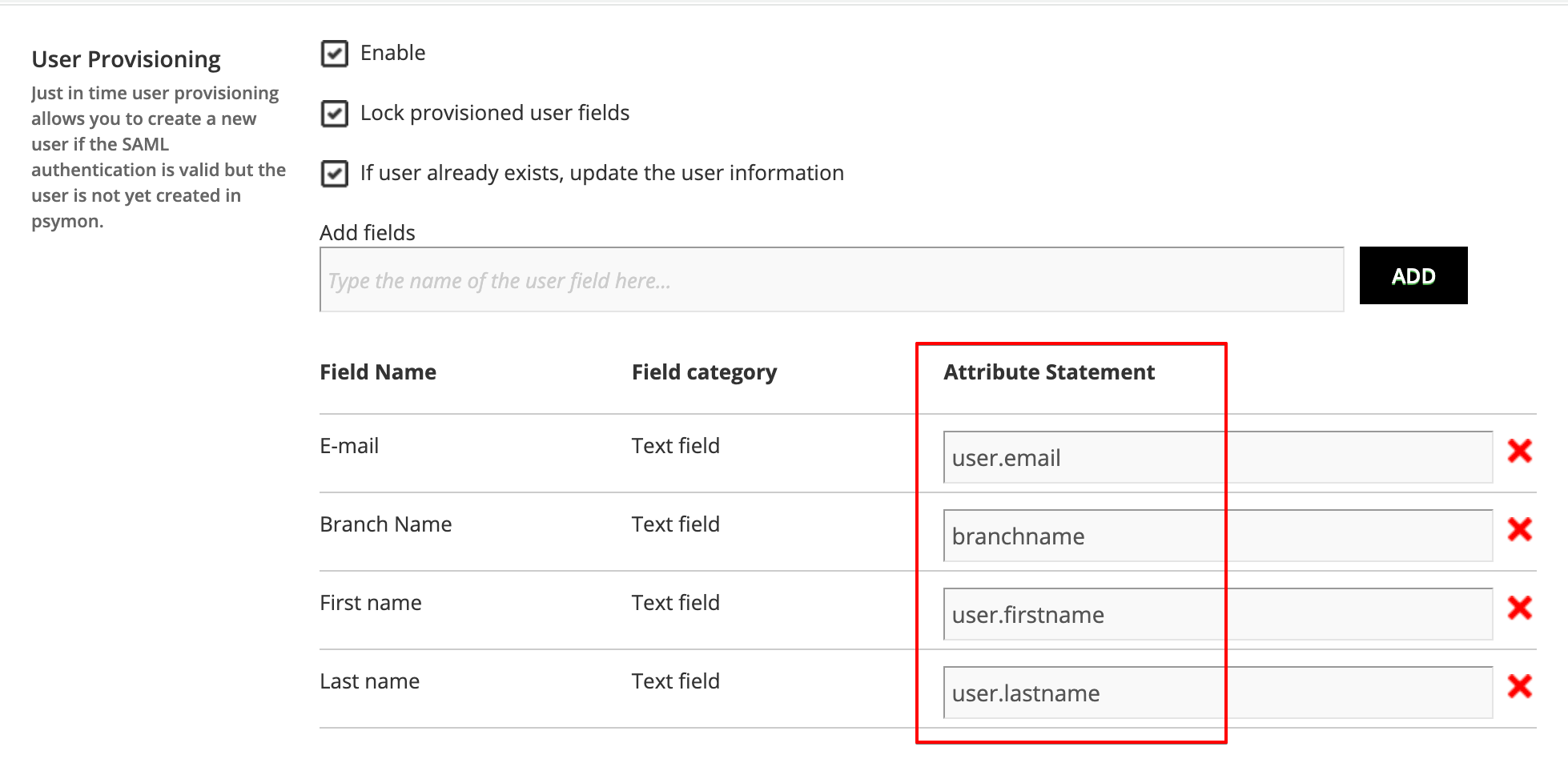
If you have verified these settings and are still experiencing issues, contact our support team with details of your Docebo SAML configuration and your IdP's attribute settings.
Just-In-Time provisioning issues
Issues with Just-In-Time (JIT) provisioning, the automatic creation of user accounts when a user first logs in via SAML, are most often caused by mismatches between your IdP configuration and Docebo. In addition to the attribute mapping checks described in the section above, two specific Docebo platform settings can cause JIT provisioning to fail.
First Name and Last Name are required in order to register option
If this option is enabled under Self Registration > Options, your SAML configuration's additional fields must include a claim mapped to the Docebo First Name field and another mapped to the Docebo Last Name field. If these claims are missing or incorrectly named in what your IdP sends, user provisioning will fail. This failure will not display a specific error message; instead it will appear to the user as a generic login error.
Use Email as Username option
If this option is enabled under Users > Options, Docebo will always use the value of the user's Email field as their Username, regardless of what you have configured in the Username attribute claim. This means that if the email claim your IdP sends is missing, empty or incorrectly formatted, user provisioning will fail.
Please note: When Use Email as Username is active, the claim you map to the Username attribute field in Docebo will still be used to populate the Docebo username field for newly provisioned users. However, the unique field selection (Username, UUID or Email) is only used for the authentication check against existing users; it does not control how the username is set during provisioning when this option is active.
How to troubleshoot JIT provisioning
Compare your Docebo SAML configuration (particularly the additional fields and Username attribute) against the claims your IdP is configured to send. Verify that all required claims (including First Name, Last Name and Email, if Use Email as Username is enabled) are being sent with correct and populated values. Pay close attention to exact claim names and formatting.
If you have checked these options and are still experiencing issues, contact our support team with details of your Docebo SAML configuration and your IdP's attribute settings.
Email address mismatches causing authentication failures
A small typo in a user's email address can prevent SAML SSO authentication from working, even when all other settings appear correct.
Why this happens
Docebo authenticates users by comparing the email value sent by your IdP against the Email field in the user's Docebo profile. If these two values do not match exactly (including differences in capitalization or domain) Docebo cannot identify the user and authentication fails. If JIT provisioning is also enabled, Docebo may then attempt to create a new user. If a user with the same username already exists in Docebo, provisioning will also fail, resulting in an error for the user.
How to resolve it
Identify the users experiencing the login error and navigate to their profiles in Docebo. Edit the Email field to ensure it exactly matches the email value your IdP sends for that user. Save the changes. Once the email addresses match, Docebo will be able to correctly identify and authenticate the affected users.